
Getting started
This guide takes you from a fresh machine to a working setup. You install Stealth Web Search, check that it runs, connect LM Studio or another MCP client, try a few tasks, and turn on the sub-agents.
When you are done you have:
- the MCP endpoint at
http://127.0.0.1:8931/mcp(Streamable HTTP), - the live dashboard at
http://127.0.0.1:8931/, - JSON log files in
./logs/.
The commands are written for a POSIX shell: Terminal on macOS, a Linux shell, or Git Bash or WSL on Windows.
Contents
- Requirements
- Get the code
- Configure (optional)
- Build and start
- Check that it works
- Connect LM Studio
- Connect other MCP clients
- Try your first tasks
- Turn on sub-agents
- Update
- Stop and uninstall
- Run without Docker
- Next steps
Requirements
| What | Needed for | Notes |
|---|---|---|
| Docker Desktop (macOS, Windows) or Docker Engine with the Compose plugin (Linux) | Running the server | Docker Compose 2.24 or newer, because compose.yaml marks .env as optional. Check with docker compose version |
An amd64 or arm64 machine | The browser | Obscura ships Linux builds for these two architectures only |
| About 1 GB of free disk space | The image and its build | |
| Node.js 24 or newer | Optional: the LM Studio setup script, the command-line agent, running without Docker | |
| LM Studio 0.3.18 or newer | Optional: a local model that uses the browser from a chat | MCP support arrived in 0.3.17, but the per-server timeout in mcp.json, which this setup needs for tool calls longer than 60 s, arrived in 0.3.18. The command-line agent needs 0.4 to find the loaded model on its own |
| A model server with tool calling | Optional: the sub-agents | Any OpenAI-compatible chat completions endpoint: vLLM, LM Studio, Ollama, llama.cpp, OpenAI and others |
Get the code
git clone https://github.com/tanishmeh/stealth-web-search.git
cd stealth-web-search
Run every later command in this folder. docker compose reads compose.yaml and .env from it.
Configure (optional)
The defaults work for a first run: the browser cannot reach private addresses, no token is required, and all browser and script tools are offered. To change a setting, copy the example file:
cp .env.example .env.env.example lists nearly every option with its default, commented out. Uncomment the lines you need. These are the settings people change most:
| Variable | Default | When to change it |
|---|---|---|
ALLOW_PRIVATE_NETWORK | false | Set true to let the browser open sites on your machine or LAN. Your machine is http://host.docker.internal:<port> from inside the container |
AUTH_TOKEN | — | Set a token if anyone else can reach port 8931. Clients then send Authorization: Bearer <token> |
TOOLSETS | all | Use core,content,forms (or core) for small local models |
OBSCURA_PROXY | — | Route browsing through an HTTP or SOCKS5 proxy, e.g. socks5://user:pass@host:1080 |
HOST_PORT | 8931 | Port 8931 is taken on your machine. Change HOST_PORT, not PORT: compose.yaml fixes HOST and PORT inside the container |
.env is in .gitignore, so it stays on your machine. If the server is already running, apply changes with docker compose up -d. Every option is described in Configuration. The sub-agents' model has its own file, config/models.json, covered in Turn on sub-agents.
Build and start
docker compose up -d --buildThe first time, this happens:
- Docker downloads the Obscura release binary (
v0.2.2, stealth build) for your CPU from GitHub and checks its SHA-256 checksum. The build stops if the checksum does not match. - It installs the npm dependencies and compiles the TypeScript server.
- It copies both into a slim Node.js 24 image that runs as the non-root user
node(uid 1000). - Compose creates the
scriptsvolume (for automation scripts), starts the containerstealth-web-search, and publishes port 8931 on127.0.0.1only. - The server starts two Obscura processes: one for the shared browser, which it connects to right away, and one for sub-agent and script browsers.
The first build takes about a minute. Later builds reuse the cached layers. To follow the startup:
docker compose logs -fThe server logs JSON lines. When you see a line with "msg":"ready — MCP endpoint http://127.0.0.1:8931/mcp, live dashboard http://127.0.0.1:8931/", press Ctrl+C. The container keeps running.
The container has restart: unless-stopped: Docker restarts it if it exits, and starts it again with Docker, until you stop it with docker compose stop or docker compose down.
Linux: file ownership
This section is for Linux only. Docker Desktop on macOS and Windows handles file ownership for you.
The server runs as uid 1000 inside the container. Two folders from your checkout are mounted into it:
| Folder | Mounted at | What the container needs |
|---|---|---|
./logs | /app/logs | Write access. Without it the server still runs, but logs to stdout only and says so at startup |
./config | /app/config (read-only) | Read access to config/models.json, once you create it. Without it the server stops at startup with a cannot read error |
If id -u prints 1000, there is nothing to do. Otherwise, run this once:
sudo chown -R 1000:1000 logsA config/models.json made with cp is readable by everyone with the usual umask of 022. If you made it private, the container cannot read it. See Turn on sub-agents for how to keep the API key in .env instead. The same ownership rule applies to any other folder you mount, such as ./data for persisted cookies (Configuration).
Check that it works
curl -s http://127.0.0.1:8931/healthzThe answer is one line of JSON. Pretty-printed, with some fields left out, it looks like this:
{
  "ok": true,
  "name": "stealth-web-search",
  "version": "0.1.0",
  "uptimeSec": 21,
  "obscura": { "mode": "managed", "running": true, "ready": true, "version": "0.2.2", "restarts": 0, "reachable": true },
  "obscuraIsolated": { "mode": "managed", "running": true, "ready": true, "version": "0.2.2", "restarts": 0, "reachable": true },
  "browser": { "connected": true, "tabs": 0 },
  "sessions": 0
}| Field | Meaning |
|---|---|
ok | true when the Obscura processes are running and answer. The HTTP status is 200, or 503 when ok is false |
name, version | Server name and version |
uptimeSec | Seconds since the server started |
obscura | The Obscura process behind the shared browser. mode is managed when the server started it (external with OBSCURA_CDP_URL). restarts counts automatic restarts after a crash |
obscuraIsolated | The second Obscura process, for sub-agent and script browsers (OBSCURA_SEPARATE_ENGINE, on by default). Missing when the server runs only one Obscura process |
browser | Whether the server is connected to the shared browser, and how many tabs are open |
sessions | Connected MCP sessions |
docker compose ps shows the container as Up … (healthy) once Docker's own health check, which calls the same URL every 15 seconds, has passed.
Now open the dashboard at http://127.0.0.1:8931/. It shows a live view of the browser, one card per tool call, the page console, network requests, server logs, connected clients and sub-agent runs. If you set AUTH_TOKEN, open http://127.0.0.1:8931/?token=<token> once.
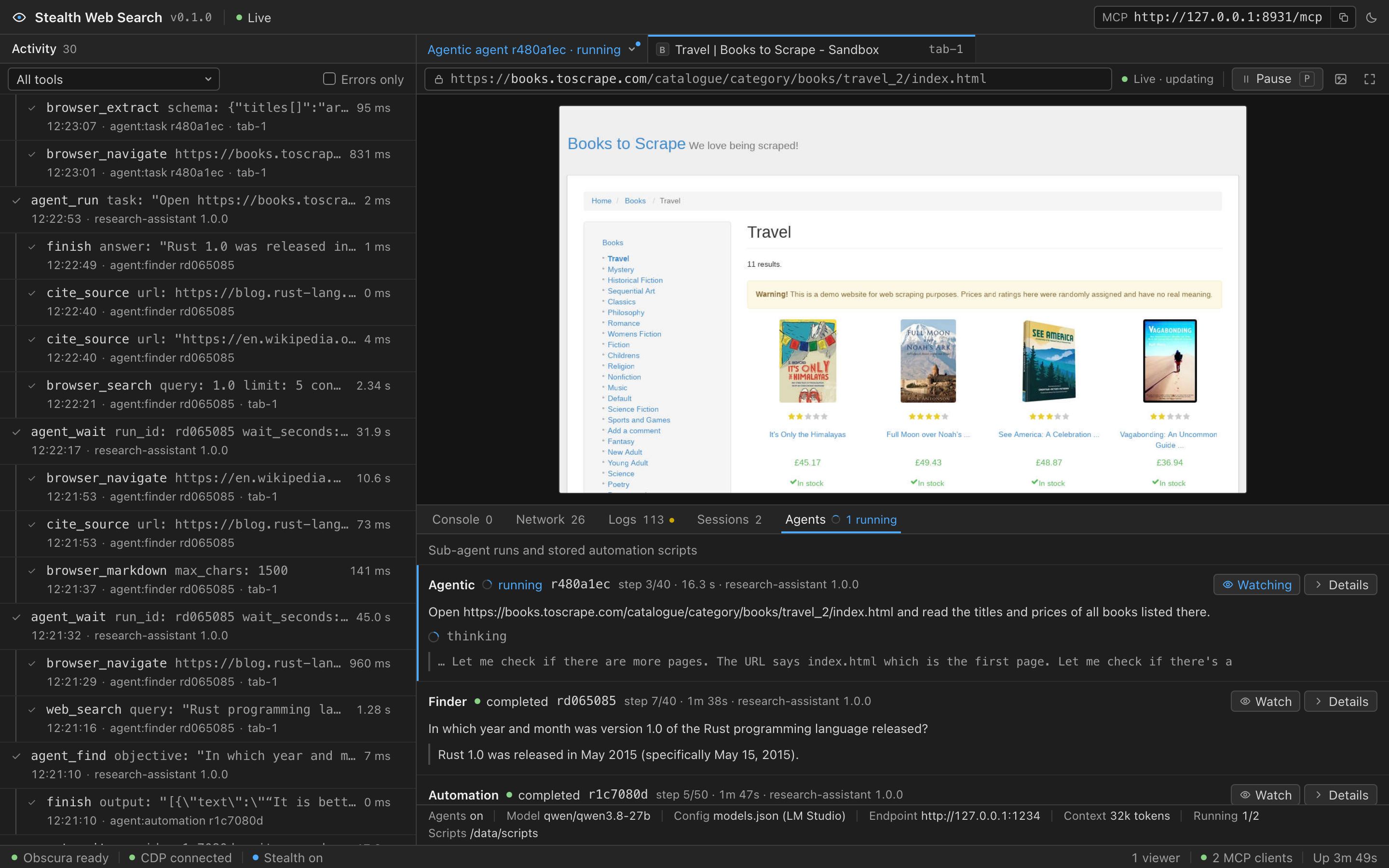
If the health check fails or the dashboard does not load, start with docker compose logs --tail 100 and see Troubleshooting.
Connect LM Studio
LM Studio connects to MCP servers on your own machine only through entries in its mcp.json file. Add the entry in one of three ways.
One-click link. For the default address and no AUTH_TOKEN: with LM Studio installed, open Add to LM Studio and confirm the install dialog in LM Studio. The link adds the default entry shown below.
Setup script. It needs Node.js but no npm ci, because it uses only Node's built-in modules:
npm run lmstudio:setupThe script adds or updates only its own entry, keeps your other servers, and writes a timestamped backup before it changes the file. Pass -- --token <token> when the server has AUTH_TOKEN set, and -- --url http://127.0.0.1:<port>/mcp when you changed HOST_PORT. -- --print prints the entry and an install link for your options without changing anything.
By hand. In LM Studio, open the right sidebar's Program tab, choose Install > Edit mcp.json, and add the entry inside mcpServers (also in examples/lmstudio-mcp.json):
{
  "mcpServers": {
    "stealth-web-search": {
      "url": "http://127.0.0.1:8931/mcp",
      "timeout": 180000
    }
  }
}
The timeout is in milliseconds. LM Studio's default is 60 seconds, which is too short for slow pages and for the sub-agent tools, which wait up to 170 seconds by default.
Then use it in a chat:
- Load a model trained for tool use. These show a hammer icon in LM Studio's model list. Set the context length to 32768 or more. The tool definitions alone take about 8.5k tokens (about 10k with the sub-agent tools), and LM Studio's default context is far too small.
- Turn on the integration. Open a new chat, open the Integrations panel (the plug icon next to the message box), and turn on mcp/stealth-web-search.
- Ask for a task, for example "Open https://quotes.toscrape.com/js/ and tell me who wrote the first three quotes."
- Approve the tool calls. LM Studio asks before each call. Choose Allow once, or Always allow for a tool you trust.
- Watch the dashboard at
http://127.0.0.1:8931/while the model works.
For small models, set TOOLSETS=core in .env, run docker compose up -d, and start a new chat: LM Studio reads the tool list when a chat first uses the server. The complete guide, with recommended model settings and a command-line agent, is LM Studio.
Connect other MCP clients
Any MCP client that speaks Streamable HTTP can use http://127.0.0.1:8931/mcp. Use 127.0.0.1, not localhost: on macOS localhost resolves to IPv6 first, and some clients do not fall back.
For Claude Code, one command adds the server:
claude mcp add --transport http stealth-web-search http://127.0.0.1:8931/mcp| Client | Configuration |
|---|---|
| Cursor | examples/cursor-mcp.json |
| VS Code | examples/vscode-mcp.json |
| Claude Desktop and other stdio-only clients | examples/claude-desktop-config.json. It runs the stdio bridge inside the container: docker exec -i stealth-web-search node dist/stdio-bridge.js |
Step-by-step instructions for each client, including token setup, are in Clients and examples/. All clients share one browser, and tool calls run one at a time.
Try your first tasks
Ask your client (an LM Studio chat, Claude Code, Cursor and so on) for a web task, and keep the dashboard open to watch it. Some prompts to start with:
| Prompt | What it exercises |
|---|---|
| Open https://example.com and tell me the main heading. | Navigating and reading a page |
| Open https://quotes.toscrape.com/js/ and tell me who wrote the first three quotes. | A page whose content is rendered by JavaScript |
| On https://books.toscrape.com, open the Poetry category and list the first 3 books with their prices. | Clicking through a site and extracting data |
| Go to https://news.ycombinator.com and list the top 3 story titles. | Reading a list from a live site |
Tasks work best when you give the full URL, say exactly what to return ("the exact text of", "a list of", "the price of"), and list the steps of a longer task in order.
To try it without a chat app, use the command-line agent. It needs npm ci once, LM Studio's local server (Developer > Start Server) and a loaded tool-use model. It finds the loaded model through an API that LM Studio added in 0.4. With an older version, pass --model <id>:
npm ci
npm run lmstudio:agent -- "Open https://example.com and tell me the main heading"
It prints the model's reasoning, each tool call and its result, and the final answer.
Turn on sub-agents
Sub-agents take a whole job from your client and return only the result. They run inside the container, each with its own private browser, and use any OpenAI-compatible chat completions model with tool calling. Once a model is configured, your client gets agent_run, agent_automate, agent_find, agent_wait, agent_status and agent_cancel. What they do is described in Sub-agents.
The model is set in config/models.json. Every field of that file is described in Models.
1. Create the file
cp config/models.example.json config/models.jsonconfig/models.json is in .gitignore, so your endpoint and key stay out of git.
2. Point it at your model
The example file has two providers: Local vLLM, a vLLM server on your network, and LM Studio, running on this machine. Unless AGENT_LLM_MODEL names a model, the server uses the first model in the file that supports tool calling, which is the vLLM one. Delete the provider you do not use, or set AGENT_LLM_MODEL=qwen/qwen3.8-27b in .env to pick the LM Studio one.
Edit these fields of the provider you keep:
| Field | Set it to |
|---|---|
models[].url | The chat completions URL of your model server, as reached from inside the container. Another machine: http://192.168.1.50:8000/v1/chat/completions. Your own machine: http://host.docker.internal:<port>/v1/chat/completions (LM Studio uses port 1234). A base URL ending in /v1 works too |
models[].id | The model id your server serves, as its /v1/models lists it. It is sent as model in every request |
apiKey | Your API key. Servers that do not check keys accept any value. ${NAME} is replaced by the environment variable NAME |
models[].contextWindow, models[].maxOutputTokens | The model's limits. For LM Studio, use the context length you load the model with. They cap the sub-agents' budget, which is 65536 context tokens and 8192 output tokens per response by default |
settings.<id>.reasoningEffort | One of the values in supportsReasoningEffort. It is sent as reasoning_effort |
A minimal file for a model in LM Studio on the same machine:
[
  {
    "name": "LM Studio",
    "vendor": "lmstudio",
    "apiKey": "lm-studio",
    "apiType": "chat-completions",
    "models": [
      {
        "id": "qwen/qwen3.8-27b",
        "url": "http://host.docker.internal:1234/v1/chat/completions",
        "toolCalling": true,
        "contextWindow": 32768,
        "maxOutputTokens": 8192
      }
    ]
  }
]
For LM Studio, start its local server (Developer > Start Server) and load the model with at least that context length. On Linux, host.docker.internal reaches only servers that listen beyond loopback: turn on LM Studio's Serve on Local Network, or start vLLM with --host 0.0.0.0.
To keep the key out of the file, write "apiKey": "${MODEL_API_KEY}" and put the key in .env:
MODEL_API_KEY=your-api-keyUse a name of your own, not one of the AGENT_LLM_* variables: those override the file (see Models).
3. Check the configuration
docker compose run --rm --no-deps stealth-web-search node dist/check-config.js --pingThis starts a one-off container from the same image, with the same .env and mounts, next to the running one. It validates the environment and config/models.json, prints the settings the server will use, and asks your endpoint for its model list. With the unchanged example file, and a vLLM server at that address, it prints:
Configuration is valid.

Server
  MCP endpoint     http://127.0.0.1:8931/mcp
  auth             none
  tools            51 (TOOLSETS=all)
  private network  blocked
  stealth          on
  log files        /app/logs

Sub-agents: on
  config          /app/config/models.json (provider "Local vLLM", vendor customendpoint)
  model           qwen3.8-27b (Qwen3.8 27B (vLLM))
  endpoint        http://192.168.1.50:8000/v1/chat/completions
  api key         set
  reasoning       medium (sent as reasoning_effort)
  sampling        temperature 0.4, top_p 0.95
  context budget  65536 tokens, up to 8192 per response (max_tokens)
  streaming       on
  concurrency     2 runs at a time, 40 steps each
  in the file     Local vLLM / qwen3.8-27b, LM Studio / qwen/qwen3.8-27b

Checking http://192.168.1.50:8000/v1/chat/completions ...
The endpoint answers and lists qwen3.8-27b.| Exit code | Meaning |
|---|---|
0 | The configuration is valid and, with --ping, the endpoint answers |
1 | The endpoint did not answer, or it answers but does not list the model id |
2 | The configuration is invalid. The message names the variable, or the file and the field, and the problem |
Run this check before you restart the server. The server reads config/models.json at startup and stops if the file is invalid.
4. Restart the server
docker compose restartThe server checks the endpoint once it is ready, a few seconds after it starts. Wait a moment, then look for the result:
docker compose logs --since 2m | grep "agent model"The log should say agent model endpoint reachable. The server reads the file only at startup, and docker compose up -d recreates the container only when compose.yaml, .env or the image changed. After you edit only config/models.json, use docker compose restart. If you also changed .env, docker compose up -d is enough.
Reconnect your MCP client so it sees the new tools. In LM Studio, start a new chat.
5. Try it
Ask your client something like "Use agent_find to find out which year Python was first released.", or call agent_run directly:
{ "task": "Open https://books.toscrape.com and read the first 3 books", "output": "JSON array of {title, price}", "output_format": "json" }The dashboard's Agents tab shows each run's steps, the model's reasoning as it streams, the sources and the result. Watch switches the live view to that run's private browser.
You can also configure the model with AGENT_LLM_* variables in .env instead of the file. When both are present, the variables you set (AGENT_LLM_URL, AGENT_LLM_API_KEY, AGENT_LLM_TEMPERATURE, AGENT_LLM_TOP_P, AGENT_LLM_REASONING_EFFORT, AGENT_LLM_STREAMING) override the file field by field. AGENT_LLM_MODEL picks a model in the file, and AGENT_LLM_EXTRA_BODY is merged over its modelOptions. AGENT_MODELS_FILE points the server at a different file, and AGENT_MODELS_FILE=none ignores the file. See Models and Sub-agents.
Update
git pull
docker compose up -d --build
Your .env, config/models.json, logs and stored automation scripts are kept. curl -s http://127.0.0.1:8931/healthz shows the running version once the server is back.
Stop and uninstall
| Command | What it does |
|---|---|
docker compose stop | Stops the container. docker compose start starts it again |
docker compose restart | Restarts the server, which reads config/models.json again. It does not apply changes to .env: use docker compose up -d for those |
docker compose down | Stops and removes the container. Logs, config and the scripts volume stay. docker compose up -d brings it back |
To remove everything:
npm run lmstudio:setup -- --remove    # only if you added the server to LM Studio
docker compose cp stealth-web-search:/data/scripts ~/stealth-web-search-scripts   # optional: keep your automation scripts
docker compose down
docker volume rm stealth-web-search_scripts
docker image rm stealth-web-search:latest
cd .. && rm -rf stealth-web-search
On Linux, logs/ belongs to uid 1000 after the server has run, so the last command may need sudo. Remove the server's entry from any other client you configured. docker builder prune frees Docker's build cache, for all projects on the machine.
Run without Docker
For development you can run the server directly with Node.js 24 or newer:
npm ci
npm run obscura:download
npm run dev
npm run obscura:downloadfetches the Obscura release for your OS and CPU (macOS, Linux or Windows; x64 or arm64) into.obscura/and checks its SHA-256 checksum against the digest GitHub publishes for it. It uses the same Obscura version as the Docker image.npm run devrunssrc/main.tswith auto-reload onhttp://127.0.0.1:8931..envis not read. Set variables in your shell instead, for exampleALLOW_PRIVATE_NETWORK=true npm run dev.config/models.jsonin the project folder is read as in Docker.host.docker.internaldoes not resolve outside Docker, so use127.0.0.1URLs for models on your machine. Check it withnpm run config:check -- --ping, adding--env-file .envif the file uses${NAME}variables from.env.- Log files go to
./logs/as JSON lines. The terminal output is human-readable when the terminal is interactive. Automation scripts are stored in./data/scripts/. - For a production-style run, use
npm run buildand thennpm start.
Security. Without Docker, Obscura's CDP endpoints listen on
127.0.0.1without authentication for as long as the server runs, one per Obscura process. Anything with access to your loopback interface can drive those browsers. The ports are random, except thatOBSCURA_CDP_PORTfixes the main one. The Docker image keeps them inside the container, so prefer Docker on shared or multi-user machines.
Next steps
- Clients: set up Claude Code, Claude Desktop, Cursor, VS Code and other MCP clients.
- LM Studio: model settings, the command-line agent and end-to-end checks.
- Models: every field of
config/models.json. - Sub-agents:
agent_run,agent_automate,agent_findand automation scripts. - Tool reference: every tool and its parameters.
- Configuration: every environment variable.
- Logging: what is logged and how to query it.
- Architecture: how the server, Obscura and the sub-agents fit together.
- Troubleshooting: common problems and their fixes.